mytennis.software as an app on your home screen
You do not need an app store. Open mytennis.school in your browser, sign in and add the page to your home screen. From then on mytennis.software starts with its own icon and full screen, like an app. It takes a minute and works for players, parents, coaches and the management of every school.
Updated: November 2026
Choose your device
The steps differ by device. Choose yours, the others stay hidden.
Safari
On the iPhone or iPad
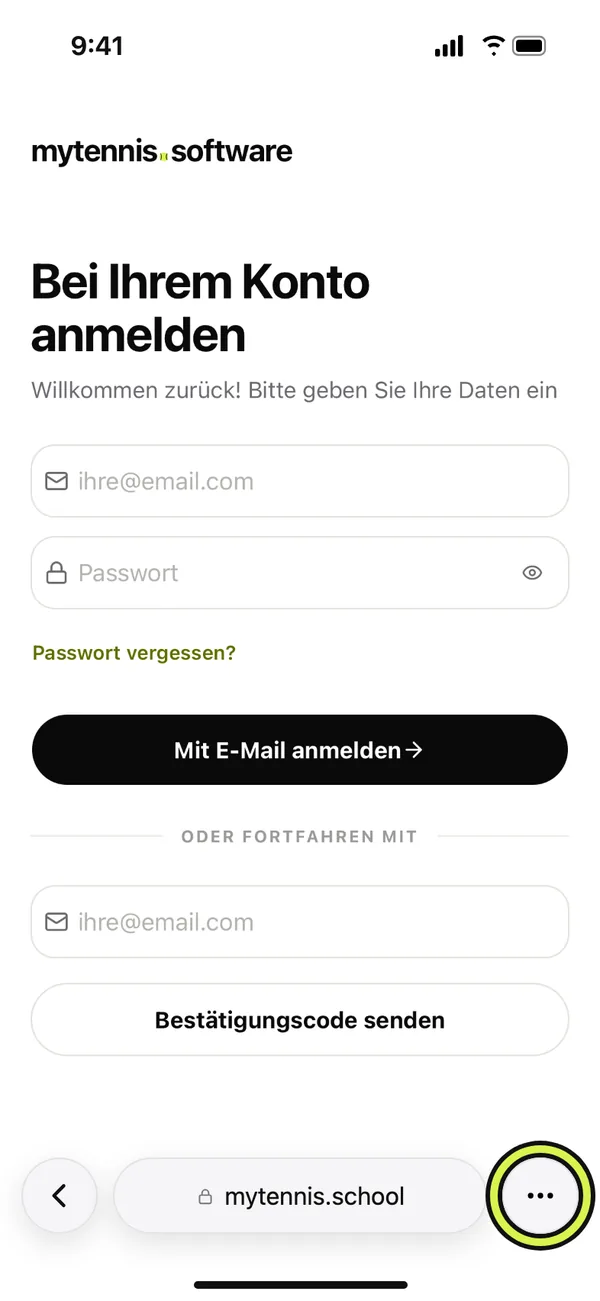
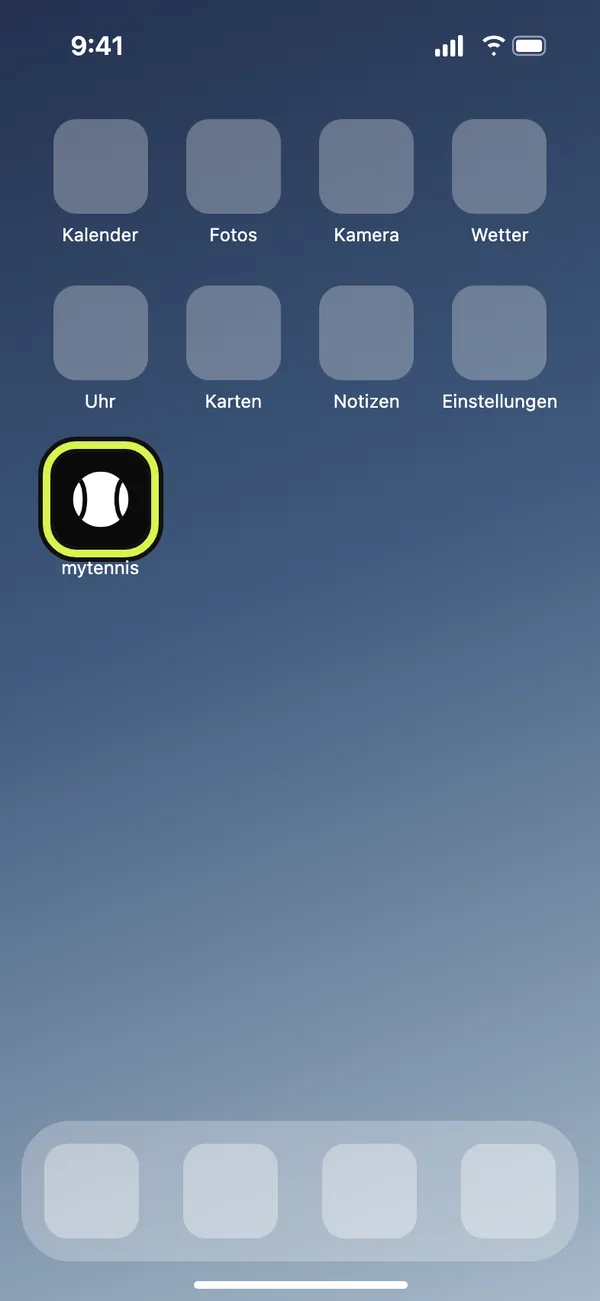
- Open mytennis.school in Safari and sign in.
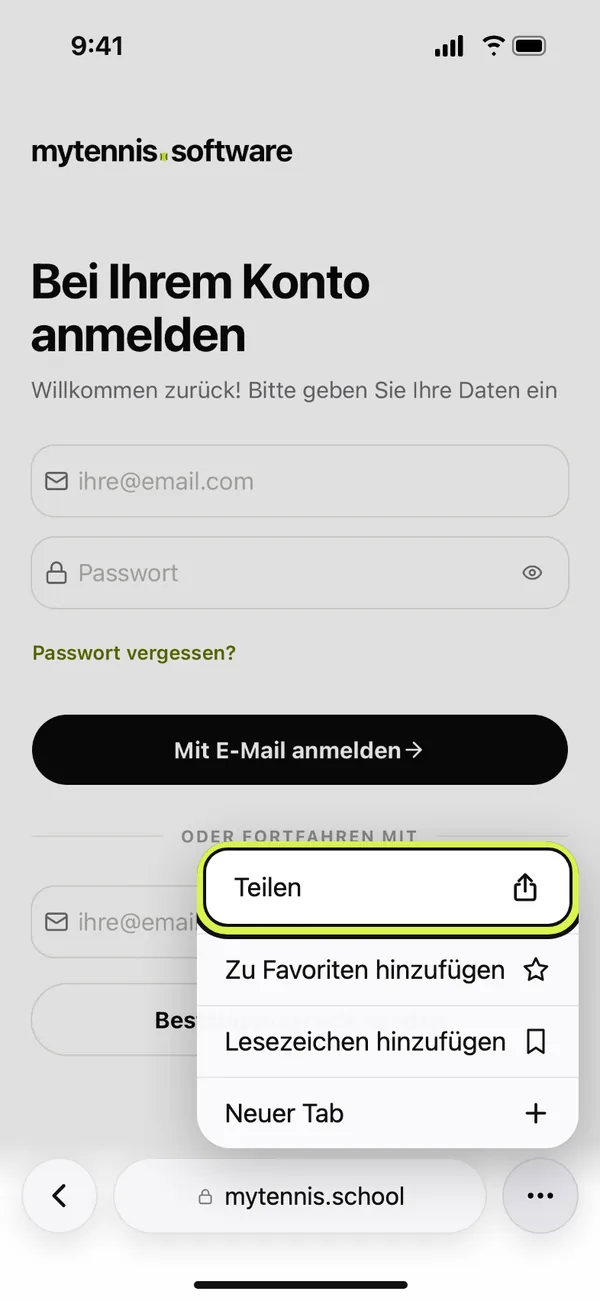
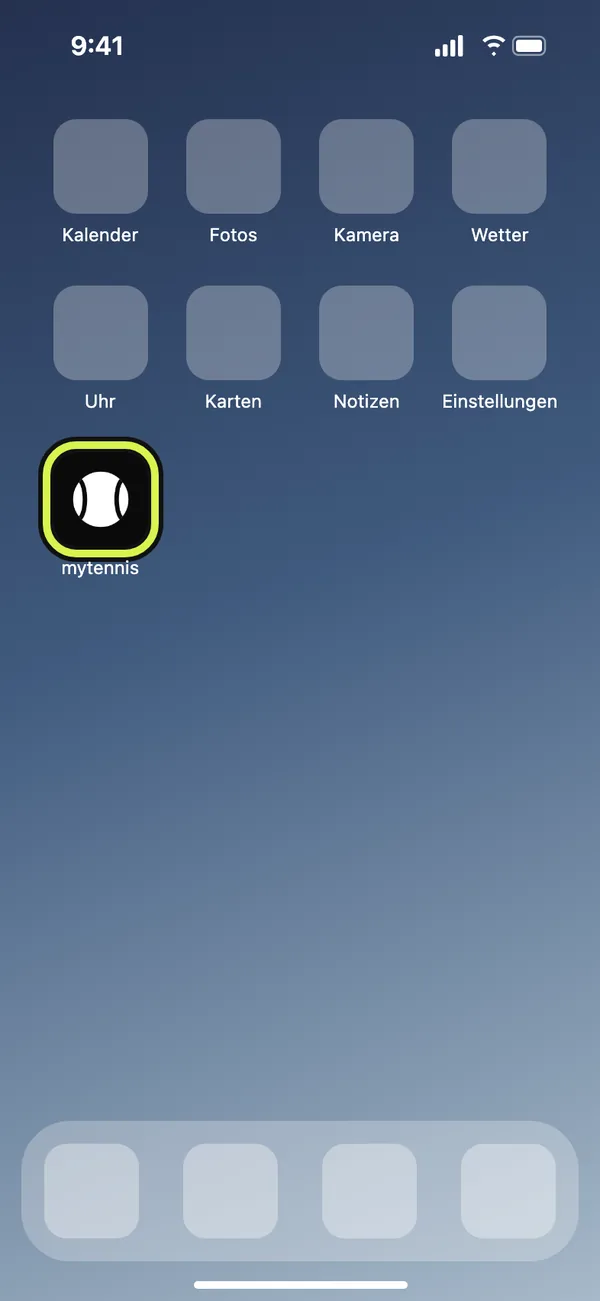
- Tap the share icon, a square with an arrow pointing up. On newer iPhones it sits behind the three dots «•••» next to the address, on the iPad at the top right.
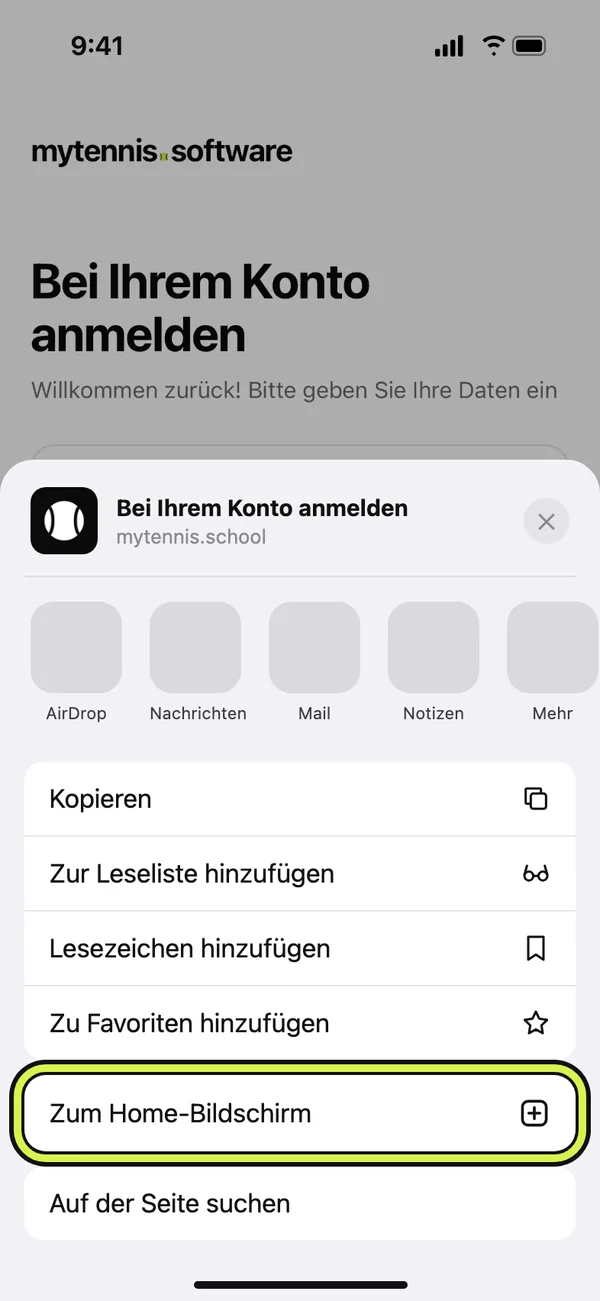
- Scroll down the list and choose «Add to Home Screen».
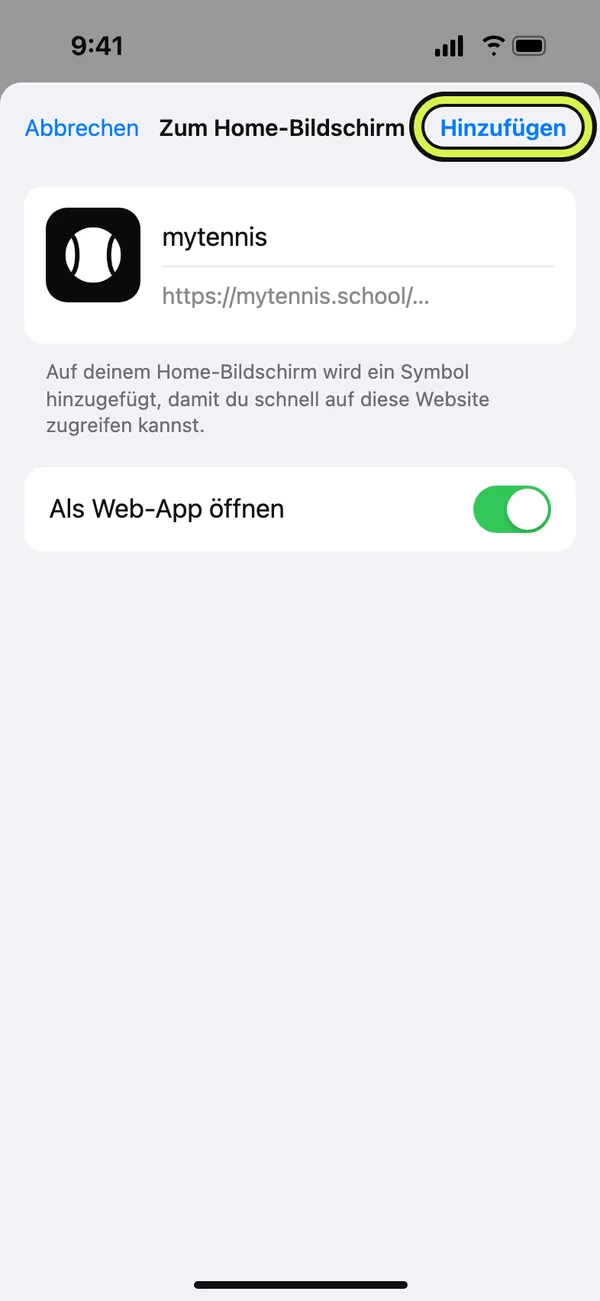
- If you see the switch «Open as Web App», leave it on. Tap «Add» at the top right.
- Open mytennis.software from the new icon and sign in once.
Google Chrome
On the iPhone with Chrome
This works from iOS 16.4. If it does not, use Safari.
- Open mytennis.school in Chrome and sign in.
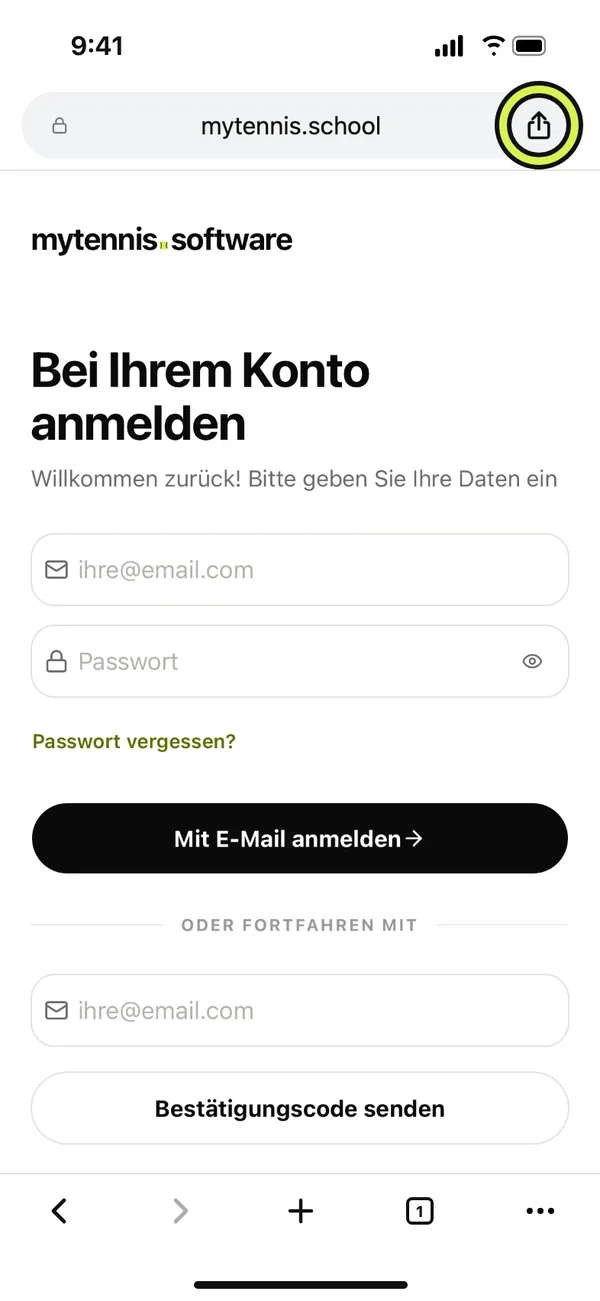
- Tap the share icon on the right of the address bar, a square with an arrow pointing up. If you do not see it, tap the three dots «•••» and then «Share».
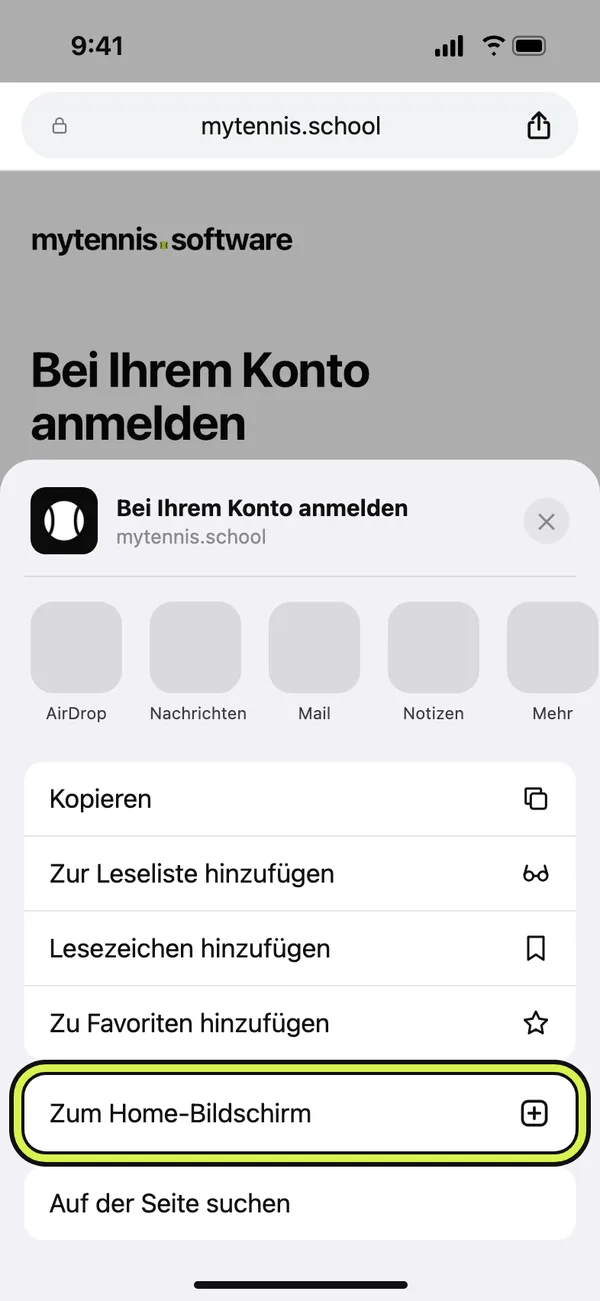
- Scroll down the list and choose «Add to Home Screen».
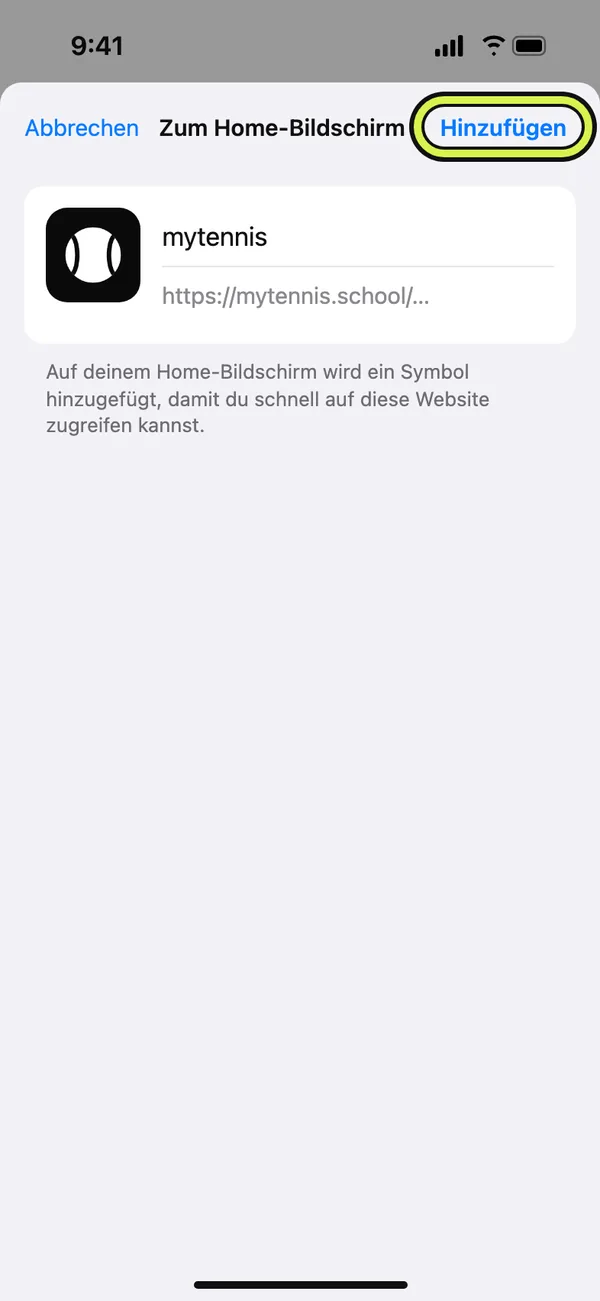
- Tap «Add» at the top right.
- Open mytennis.software from the new icon and sign in once.
Chrome
On an Android phone with Chrome
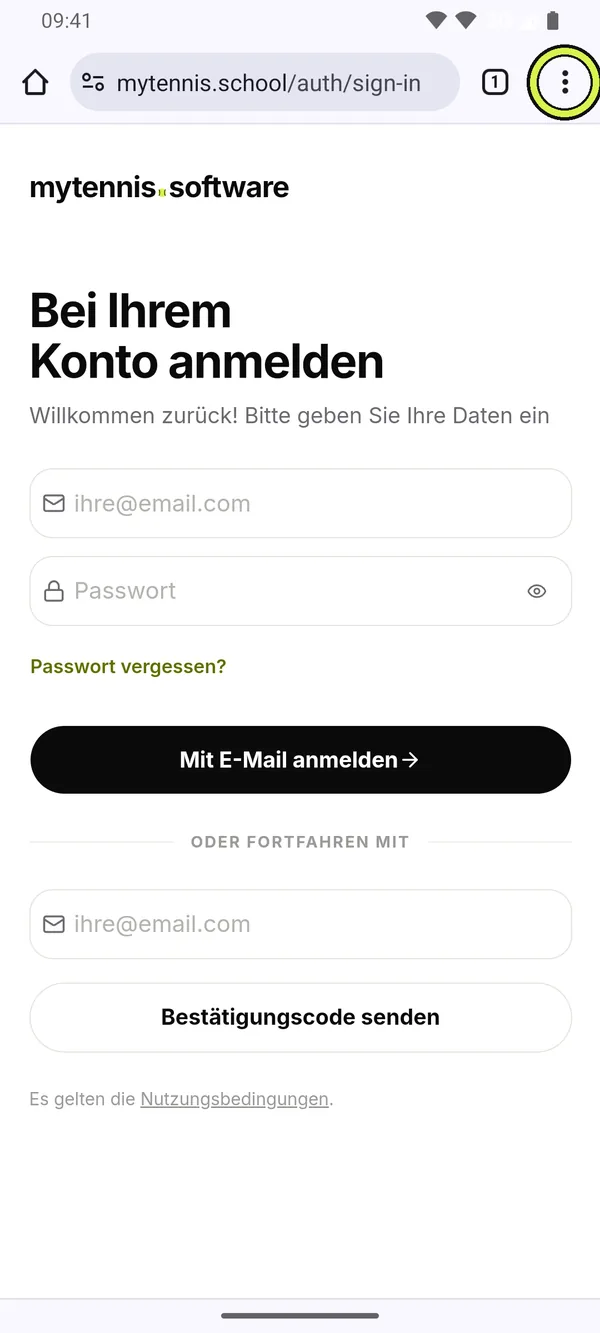
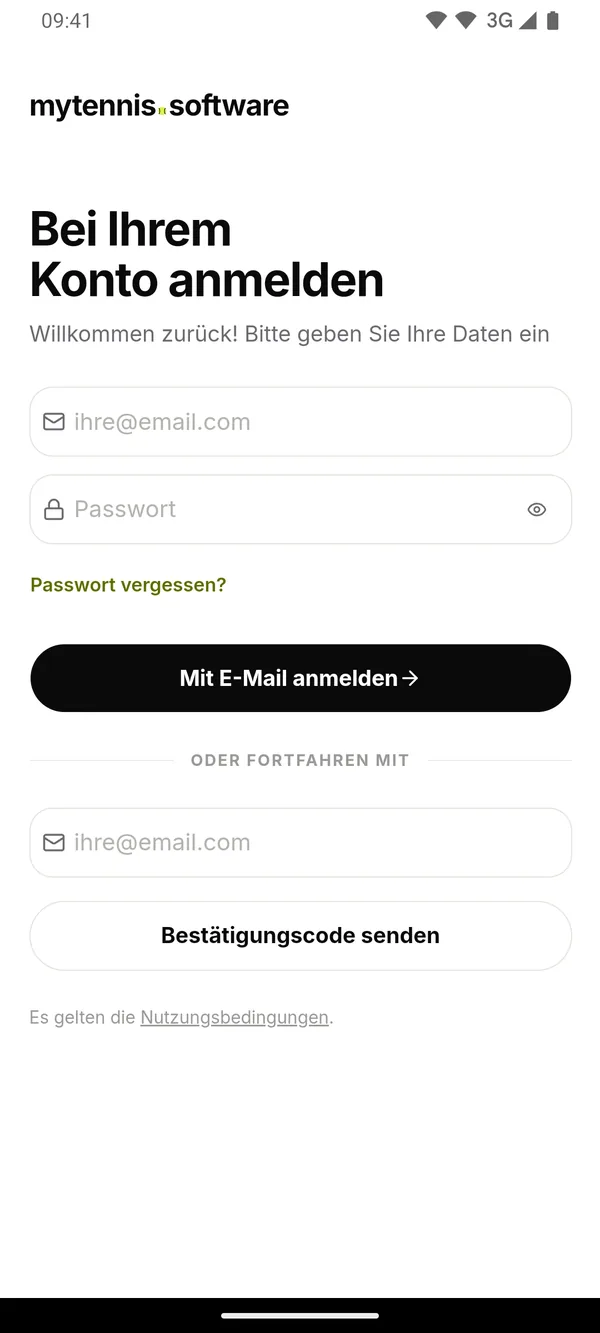
- Open mytennis.school in Chrome and sign in.
- Tap the three dots ⋮ at the top right.
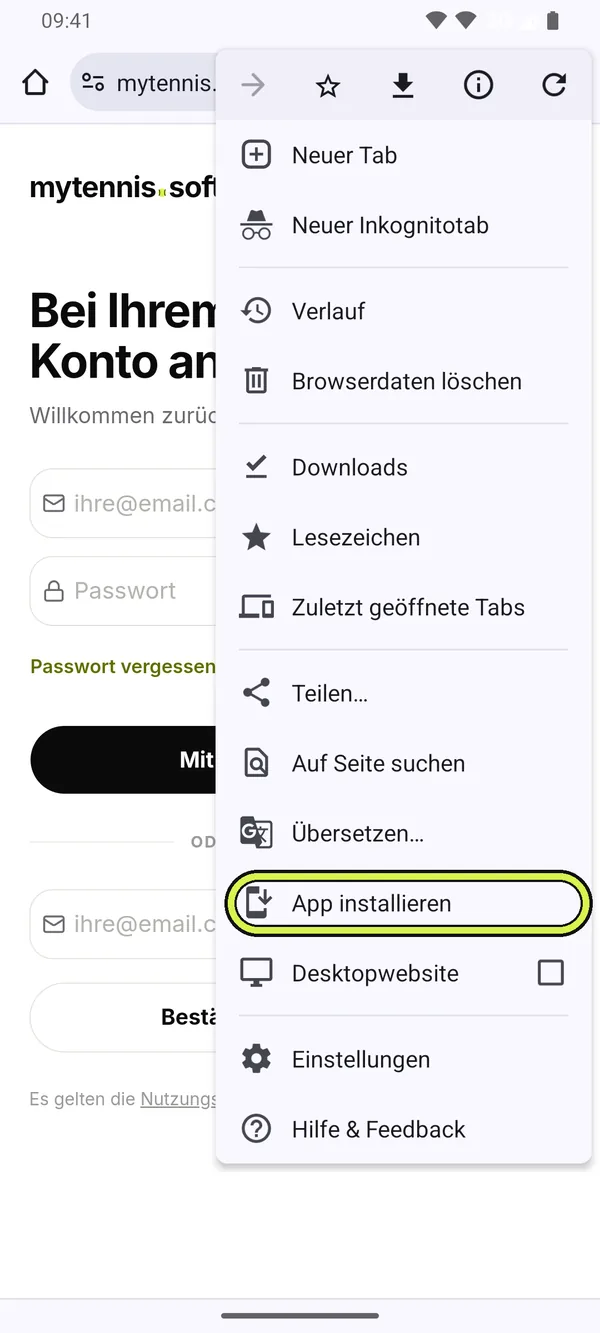
- Choose «Install app» or «Add to Home screen».
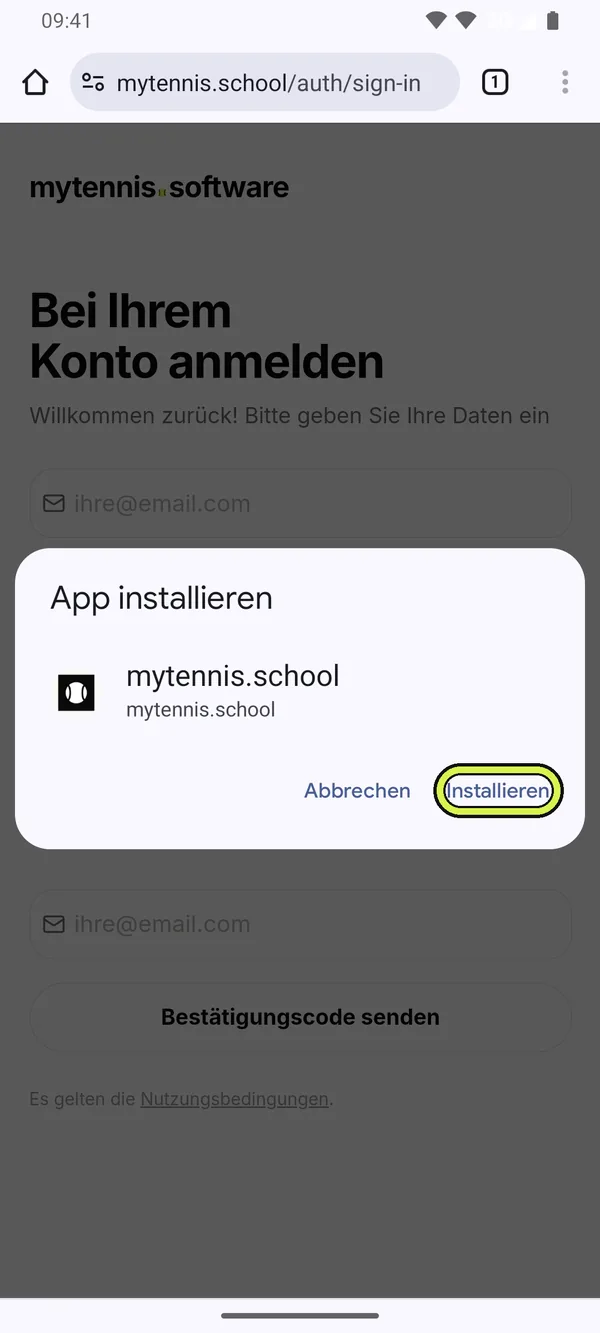
- Confirm with «Install». If the phone asks, tap «Add to Home screen».
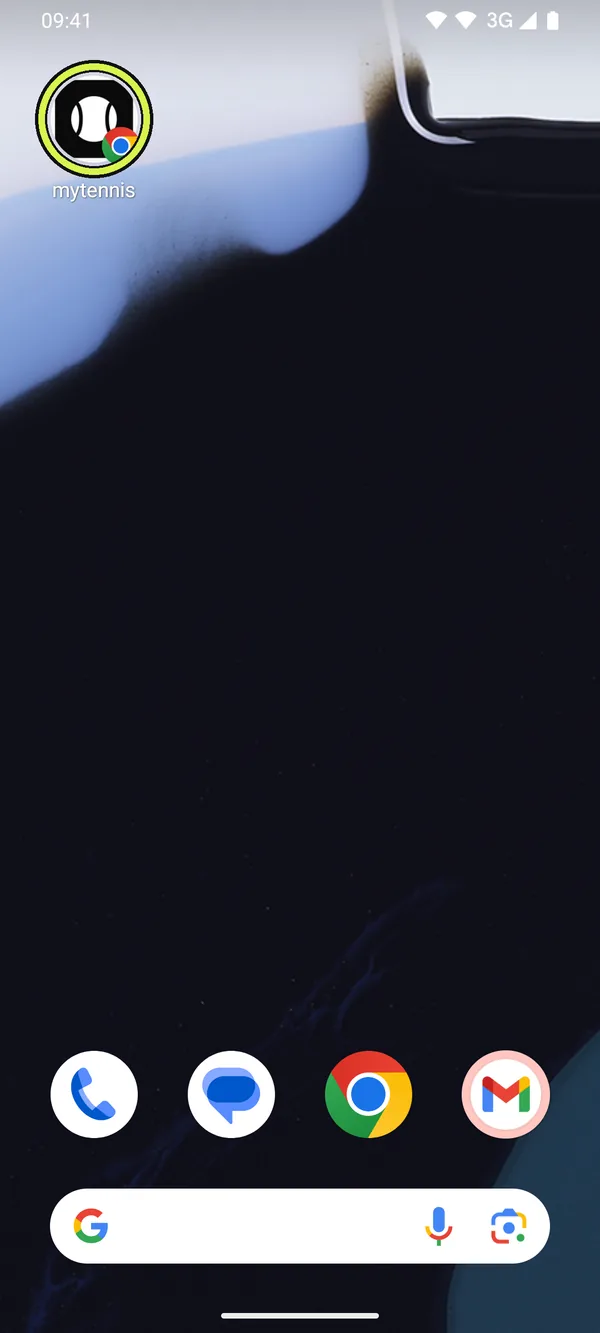
- Open mytennis.software from the new icon. It opens full screen, without address bar.
Samsung Internet
On a Samsung phone with Samsung Internet
Samsung Internet is the default browser on many Samsung phones. If you use Chrome there, follow the Android guide.
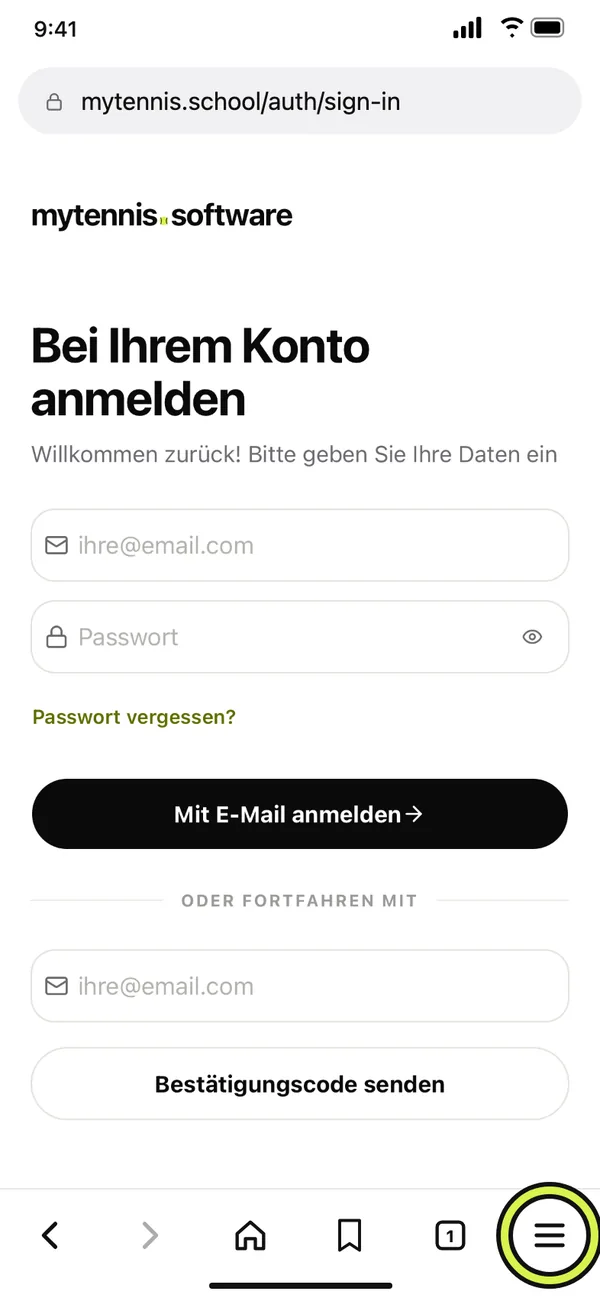
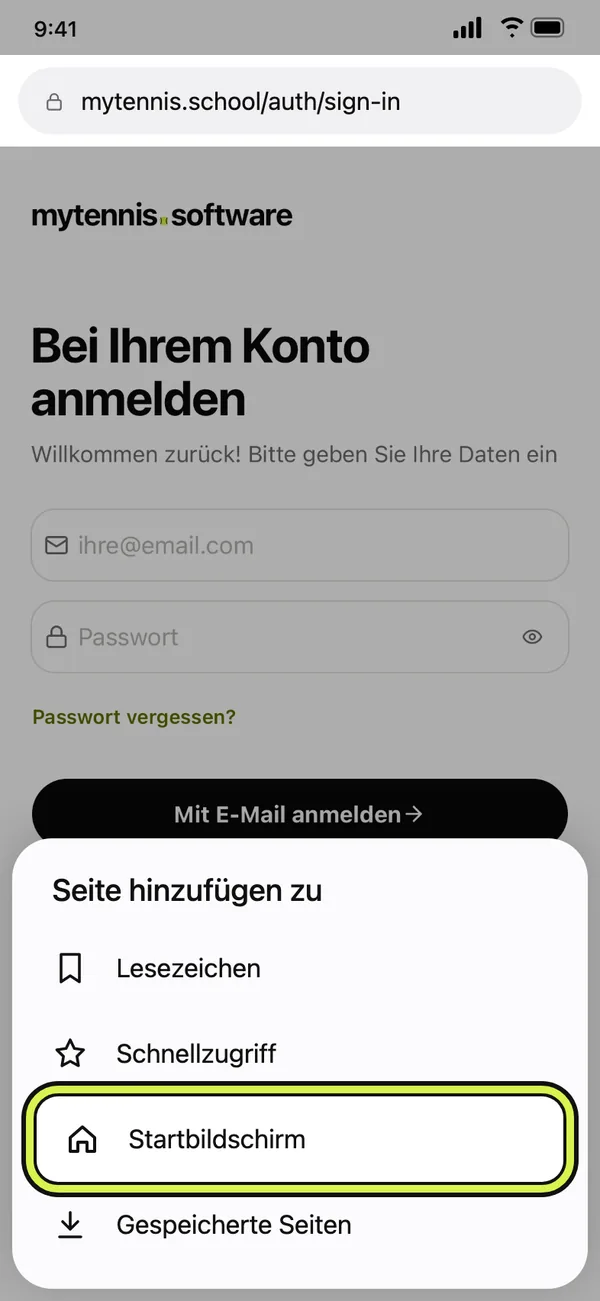
- Open mytennis.school in Samsung Internet and sign in.
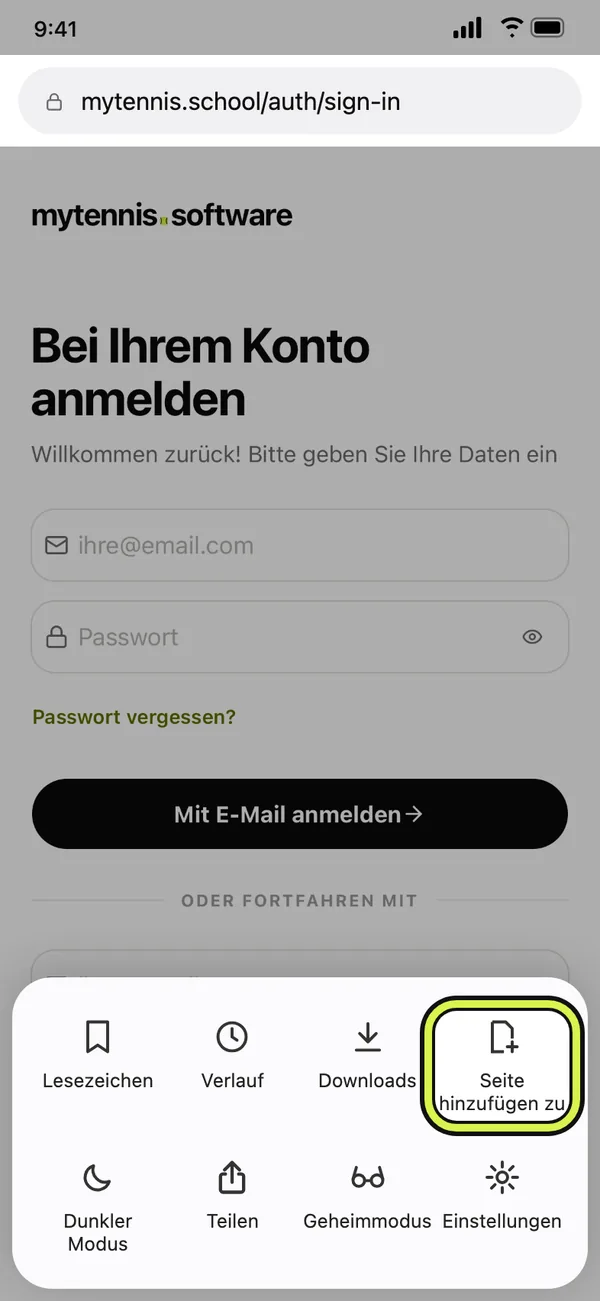
- Tap the menu ≡ at the bottom right.
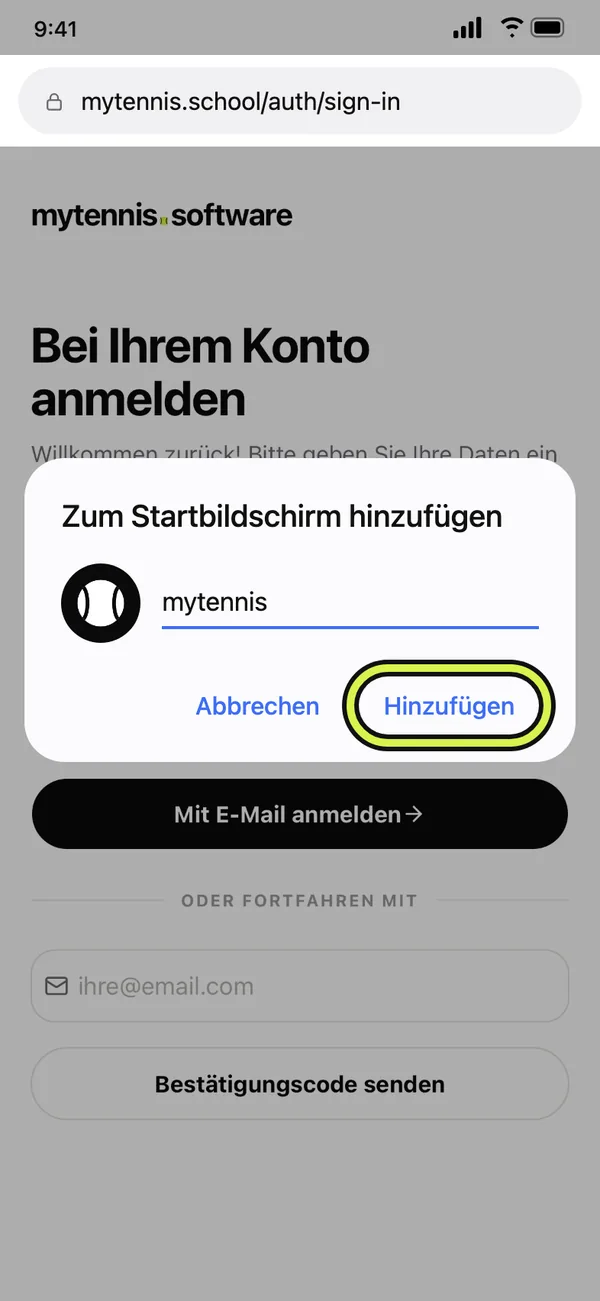
- Choose «Add page to», then «Home screen».
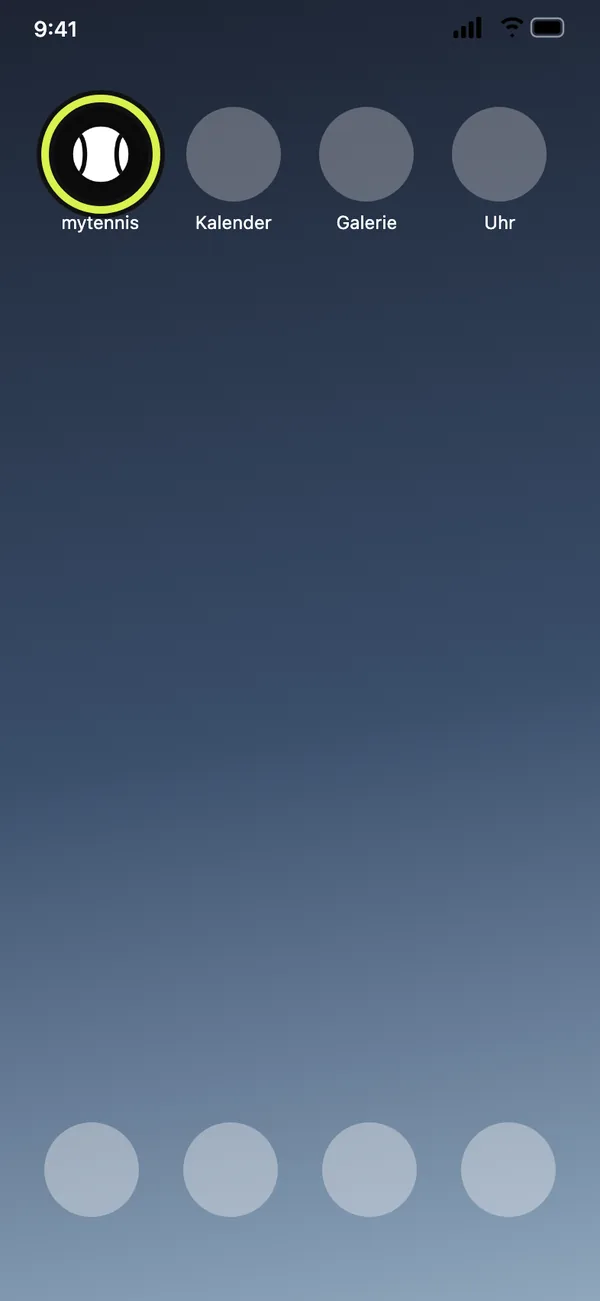
- Confirm with «Add». The icon appears on your home screen.
Chrome, Edge or Safari
On the computer
Handy for management and coaches on a laptop: mytennis.software then opens in its own window, without tabs.
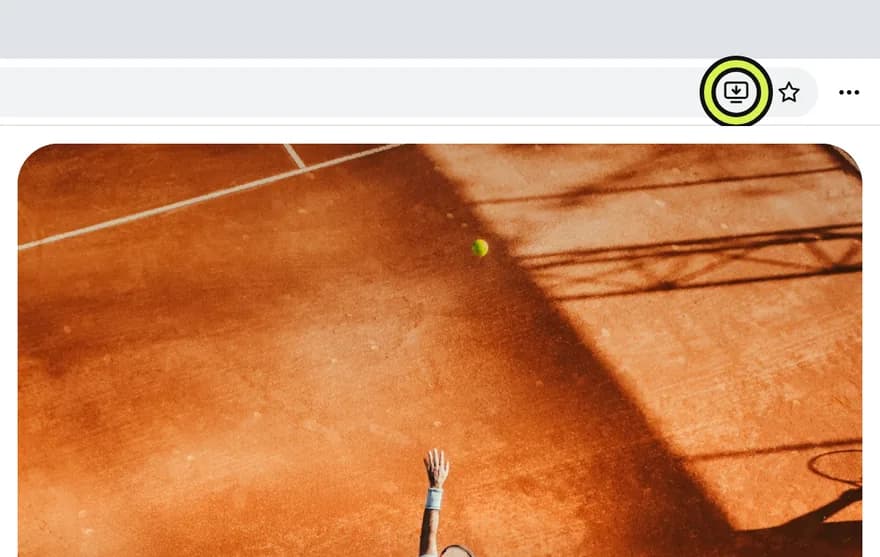
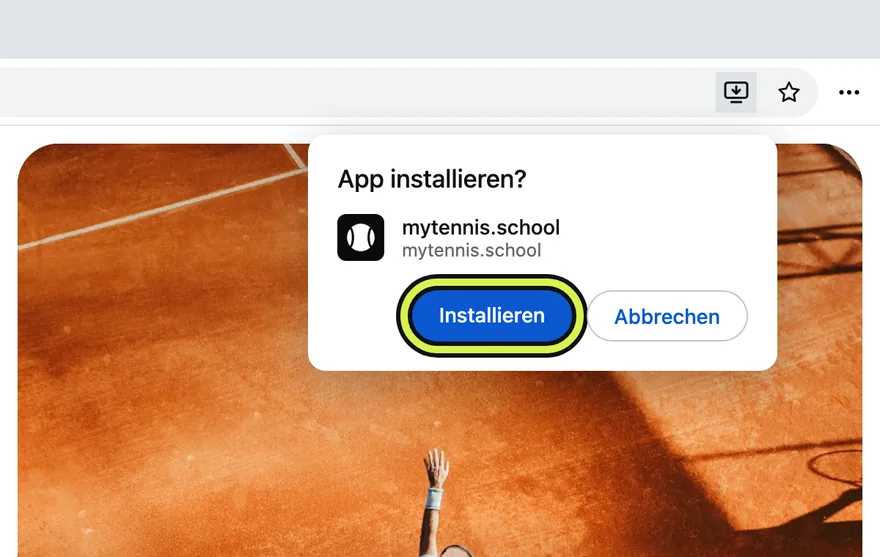
- Chrome and Edge: click the «Install» icon on the right of the address bar (a screen with an arrow), then «Install».
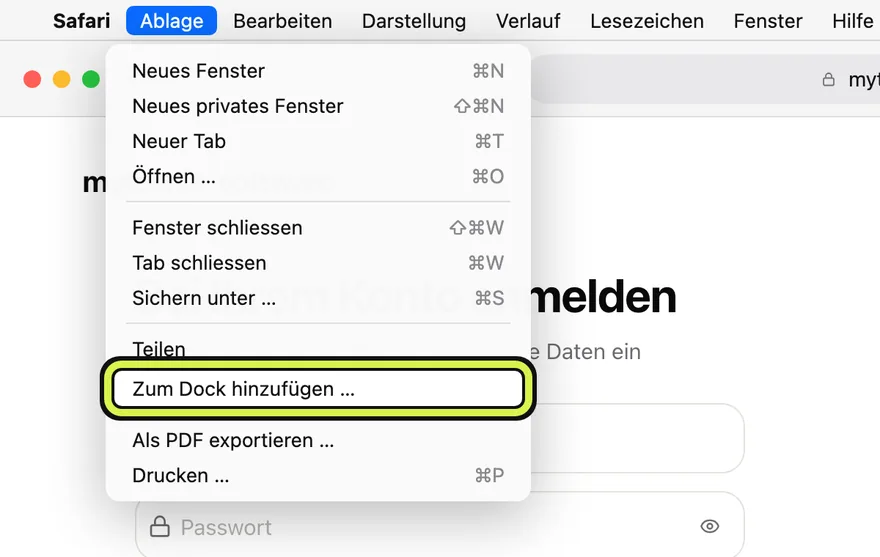
- Safari on the Mac: in the «File» menu, click «Add to Dock».
- You then find mytennis.software in the Dock, the taskbar or the start menu.
Turn on push notifications
So that cancellations and changes reach you even when the app is closed, turn on push notifications next. The guide with pictures for iPhone, iPad and Samsung is at mytennis.school/en/push-notifications.
What you get
- Its own icon on the home screen: one tap and your training plan is open.
- Full screen without address bar or tabs, like an app from the store.
- Always up to date: there is nothing to update, and it needs hardly any storage.
- On the iPhone, mytennis.software can only show notifications from the home screen.
For schools: how to reach every member
All schools use the same address, mytennis.school. After signing in, every member sees their own school. That is why this guide works for every school. Send your players, parents and coaches the link mytennis.school/en/install-app, for example in the season start mailing or the parents’ chat.
Frequently asked questions
No. mytennis.software runs in the browser. On the home screen the page gets its own icon and opens like an app. From 2027, schools can optionally have their own app with their name and logo.
If you open the link from an email or WhatsApp, it often lands in a built-in browser without this option. Open the page in Safari or Chrome (iPhone), or in Chrome or Samsung Internet (Android) instead. On older iPhones before iOS 16.4 it only works in Safari.
On the iPhone and iPad once, because the home screen app has its own storage. After that you stay signed in. On Android and on the computer you are usually signed in already.
Press and hold the icon and choose «Remove App» or «Uninstall». Your account, sign-ups and invoices stay stored with your school.