Turn on push notifications
With push notifications you hear about cancellations, new times and court changes right away, even when the app is closed. Add mytennis.software to your home screen, tap the bell in the app and then «Turn on». Then allow notifications on the device. On Samsung phones it is worth checking the battery settings as well.
Updated: November 2026
What comes by push
- Lessons: cancellations, new times, coach or court changes.
- Placement: group fixed or changed.
- Sign-ups and indoor court booking: decisions on sign-ups, court slots, private lessons.
- For coaches and school management: absences and cancellations, new sign-ups and private lesson requests. Everything new in the bell also comes as push.
- You choose what comes under Profile › Notifications. From 10 pm to 7 am notifications are collected and delivered at 7 am. Cancellations for today come right away.
Choose your device
The steps differ by device. Choose yours, the others stay hidden.
App on the home screen
Push notifications on iPhone and iPad
Notifications work from iOS 16.4 and only in the app on the home screen, not in Safari. So add mytennis.software to your home screen first, as shown at mytennis.school/en/install-app.
- Open mytennis.software from the «mytennis» icon on your home screen.
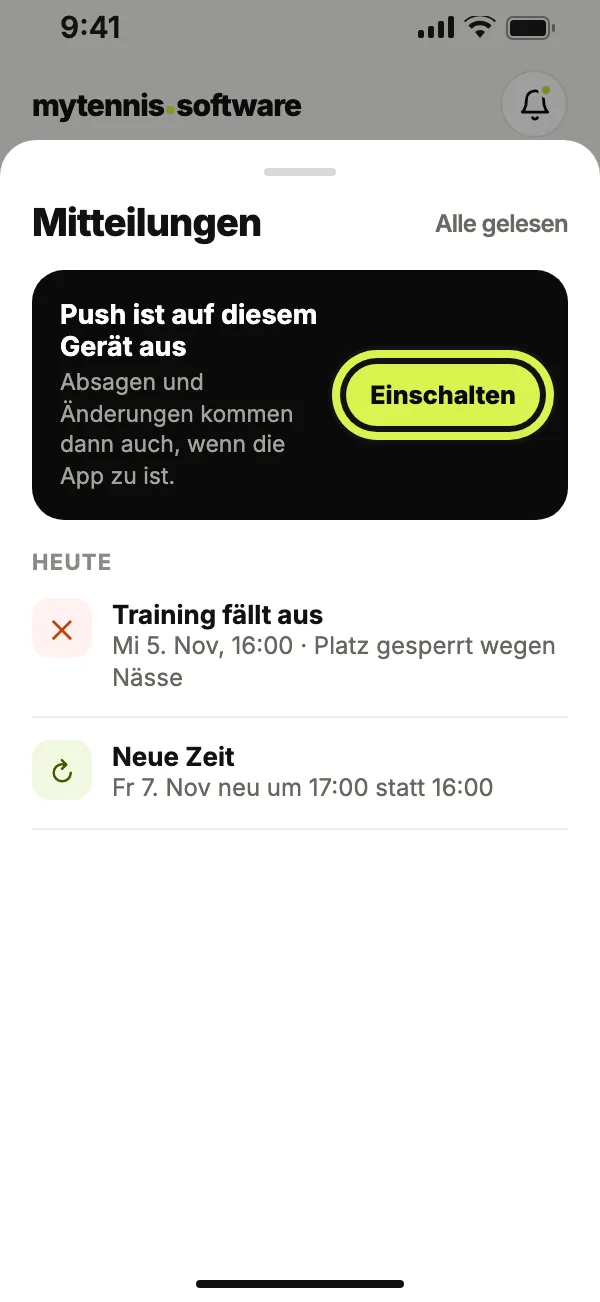
- Tap the bell at the top. Under «Get notifications», tap «Turn on». You find the same under Profile › Notifications.
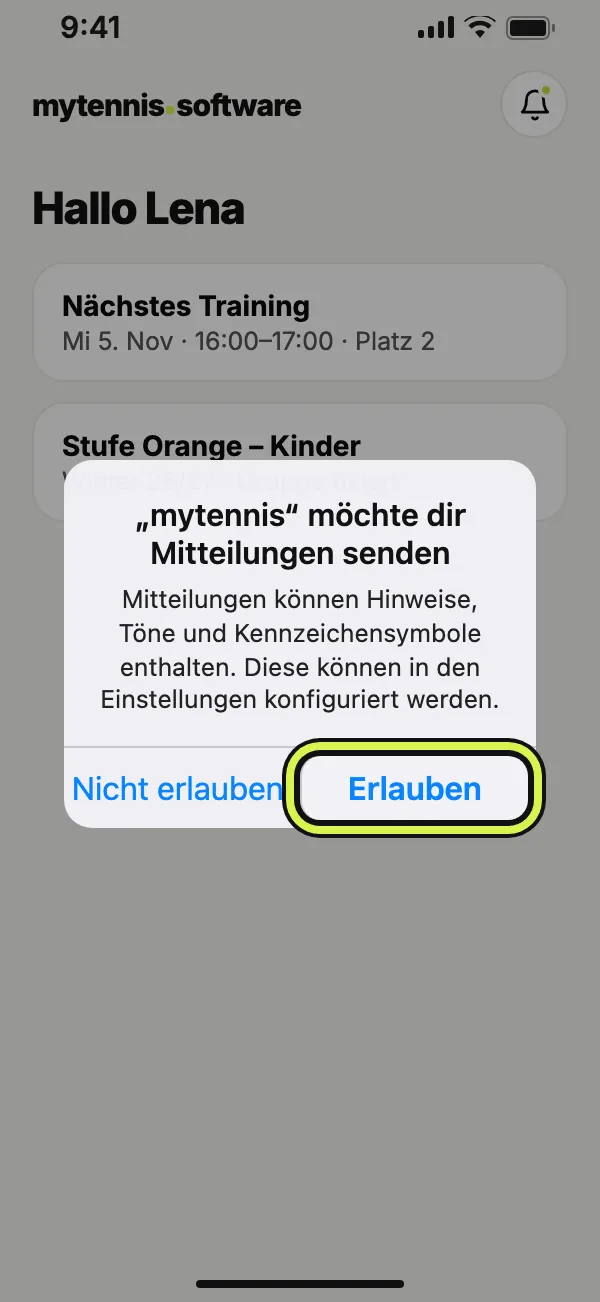
- The iPhone asks whether mytennis may send notifications. Tap «Allow».
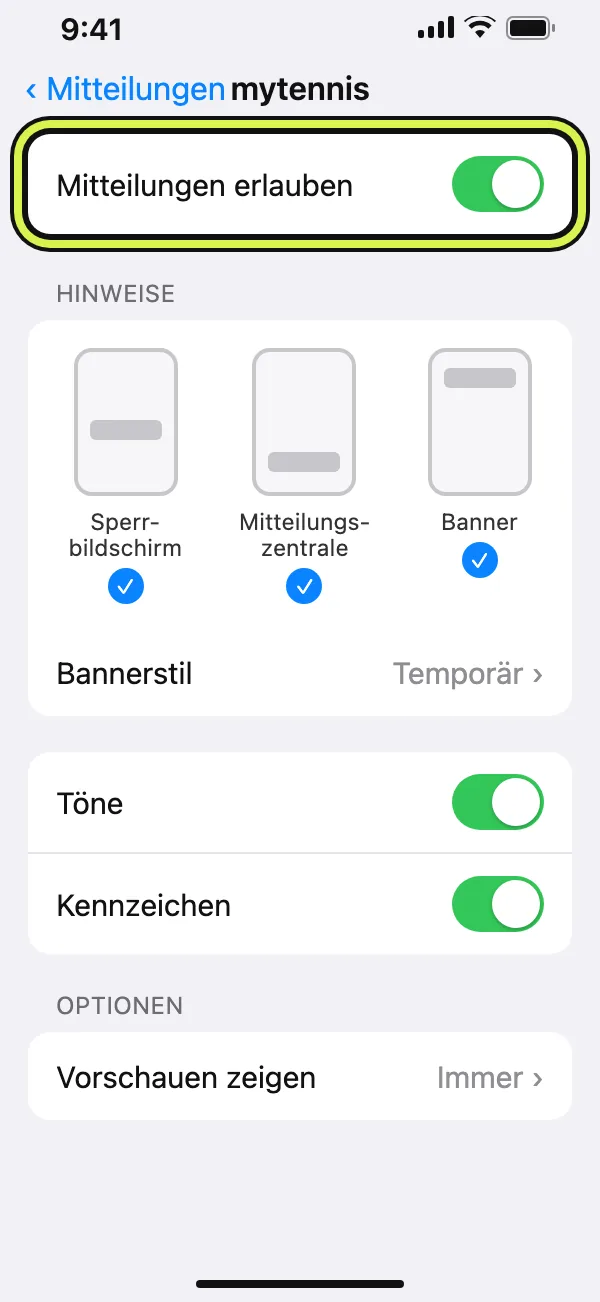
- If nothing arrives, open the iPhone Settings › Notifications › «mytennis» and turn on «Allow Notifications», plus Lock Screen and Banners.
- A Focus such as «Do Not Disturb» or «Sleep» holds notifications back. To still see cancellations, allow mytennis under Settings › Focus.
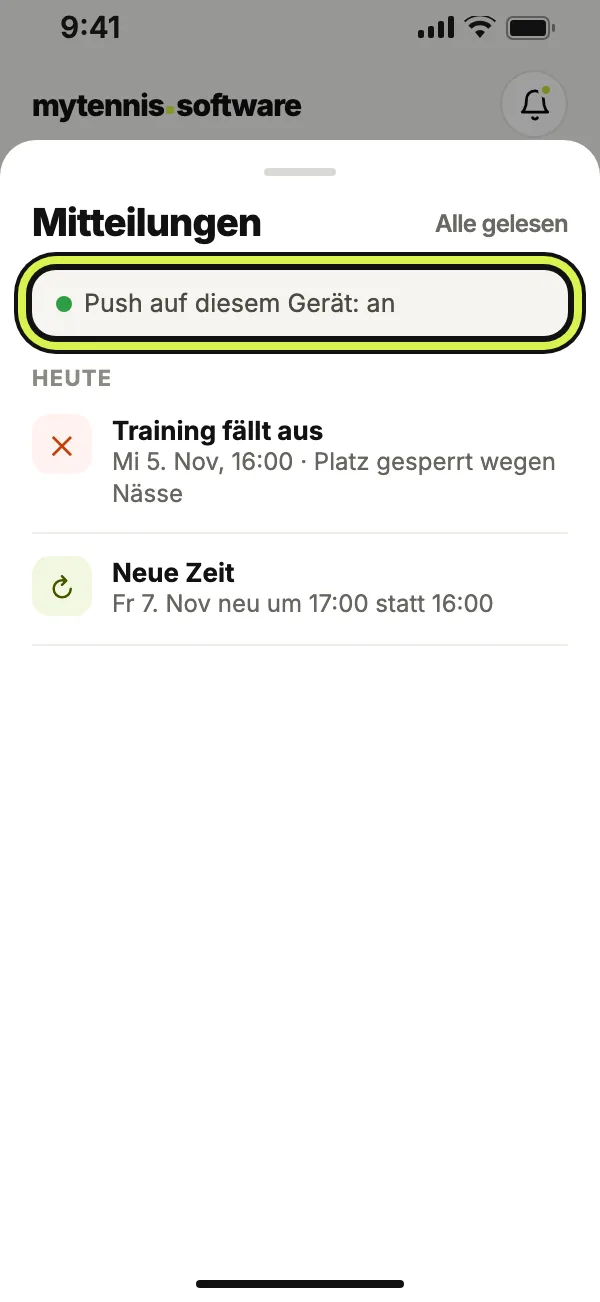
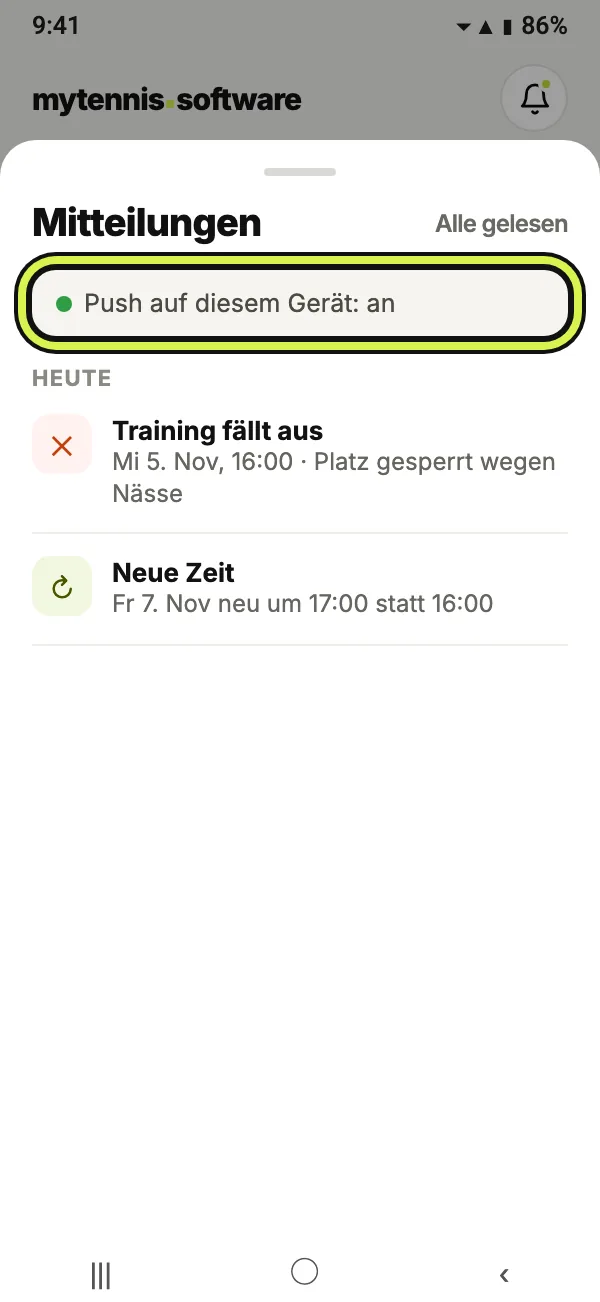
- When the bell says «Push on this device: on», you are all set.
Chrome or Samsung Internet
Push notifications on Samsung and other Android phones
Samsung phones like to put apps you rarely open into deep sleep. Cancellations then arrive late or not at all. Depending on the model, the entries are named slightly differently.
- Open mytennis.software from the icon on your home screen.
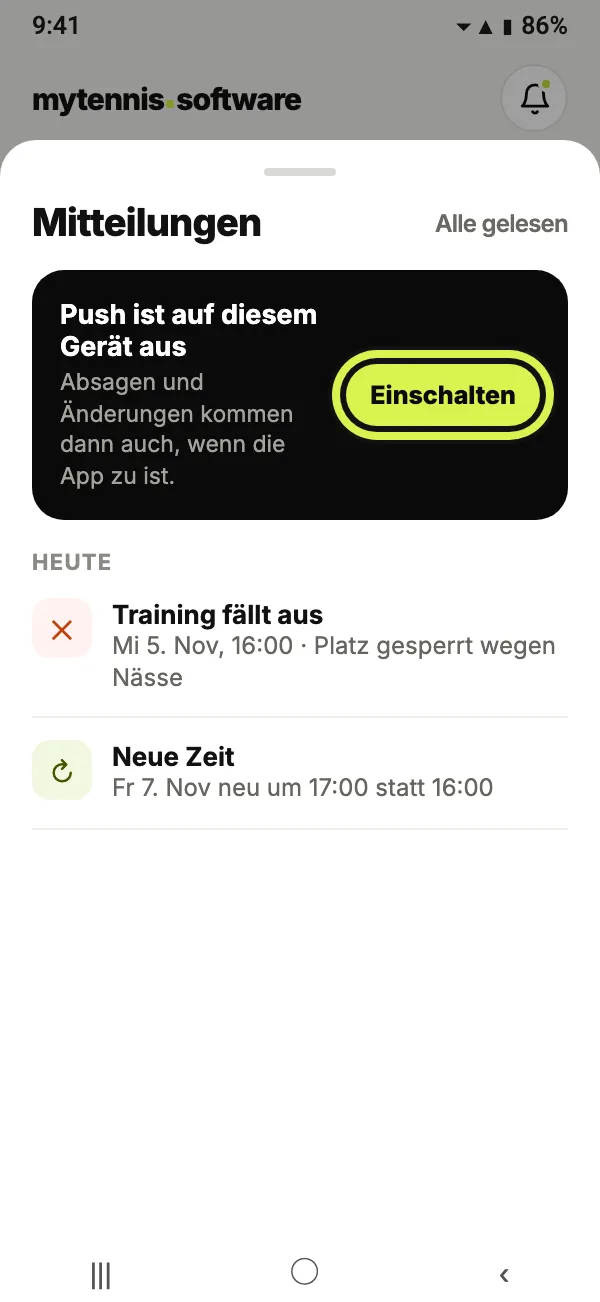
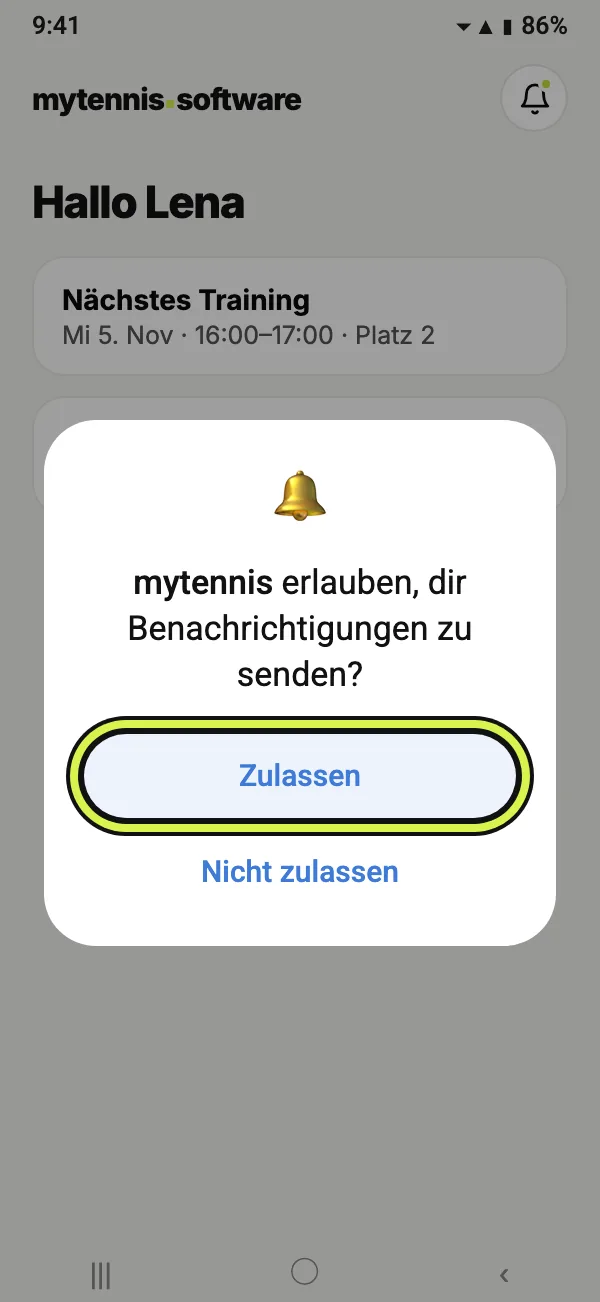
- Tap the bell at the top. Under «Get notifications», tap «Turn on» and then «Allow». You find the same under Profile › Notifications.
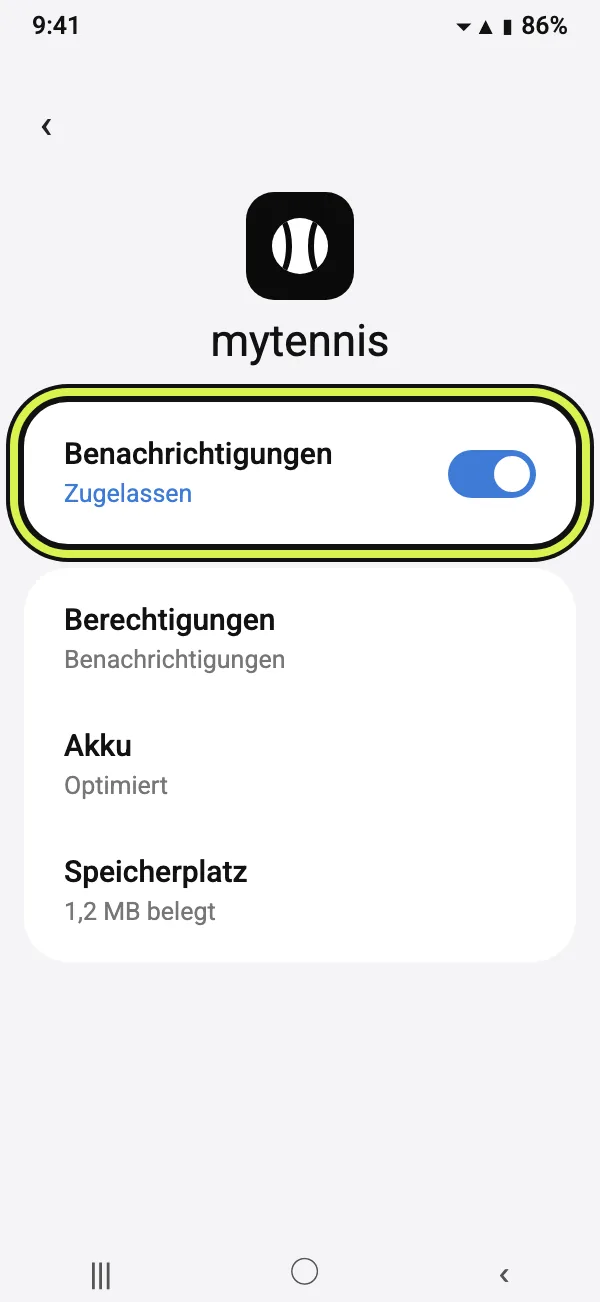
- Open the phone Settings › Apps › «mytennis». If you added the page with Samsung Internet, choose «Samsung Internet», otherwise «Chrome». Turn on «Notifications» there.
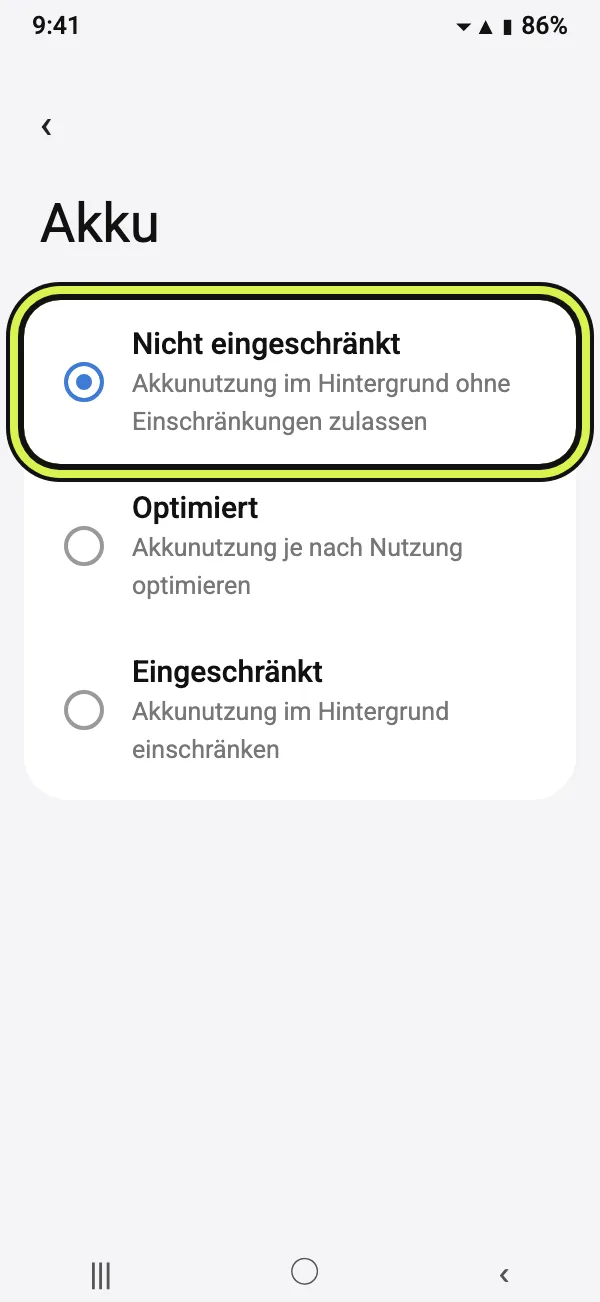
- In the same app, under «Battery», choose «Unrestricted».
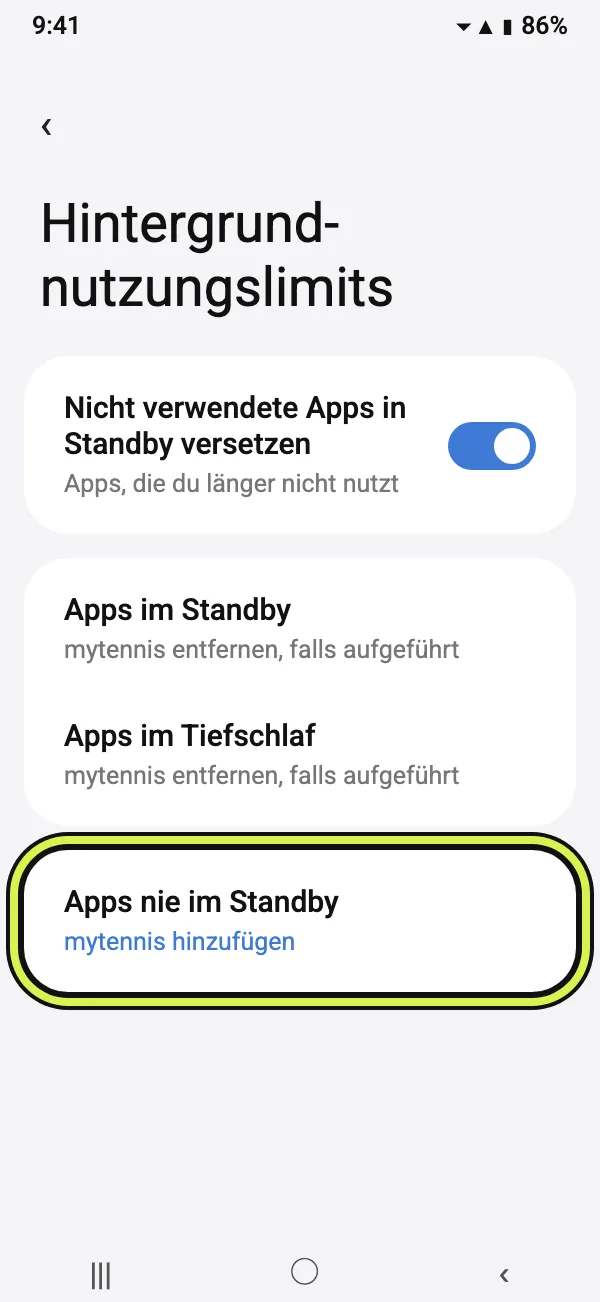
- Under Settings › Battery › «Background usage limits»: if the app is listed under «Sleeping apps» or «Deep sleeping apps», remove it there and add it under «Never sleeping apps».
- When the bell says «Push on this device: on», you are all set.
First add the app to your home screen
On iPhone and iPad, notifications only work in the app on the home screen. The guide at mytennis.school/en/install-app shows how to add it. On Android phones notifications also arrive in the browser, but they are more reliable in the app on the home screen.
Frequently asked questions
Usually push is still off on the device, or the phone holds the app back. Check in the bell whether it says «Push on this device: on». On the iPhone a Focus such as «Do Not Disturb» holds notifications back, on Samsung the deep sleep for apps. The steps above show where to change that.
Yes, push works per device. If you use mytennis.software on phone and tablet, turn it on on both. Under Profile › Notifications you see which devices are signed in.
Yes, in Chrome, Edge, Firefox and Safari. Click the bell in mytennis.software, then «Turn on», and allow notifications in the browser.